Time Tracking
Clock in/out, editing time entries, break reminders, and blockchain verification
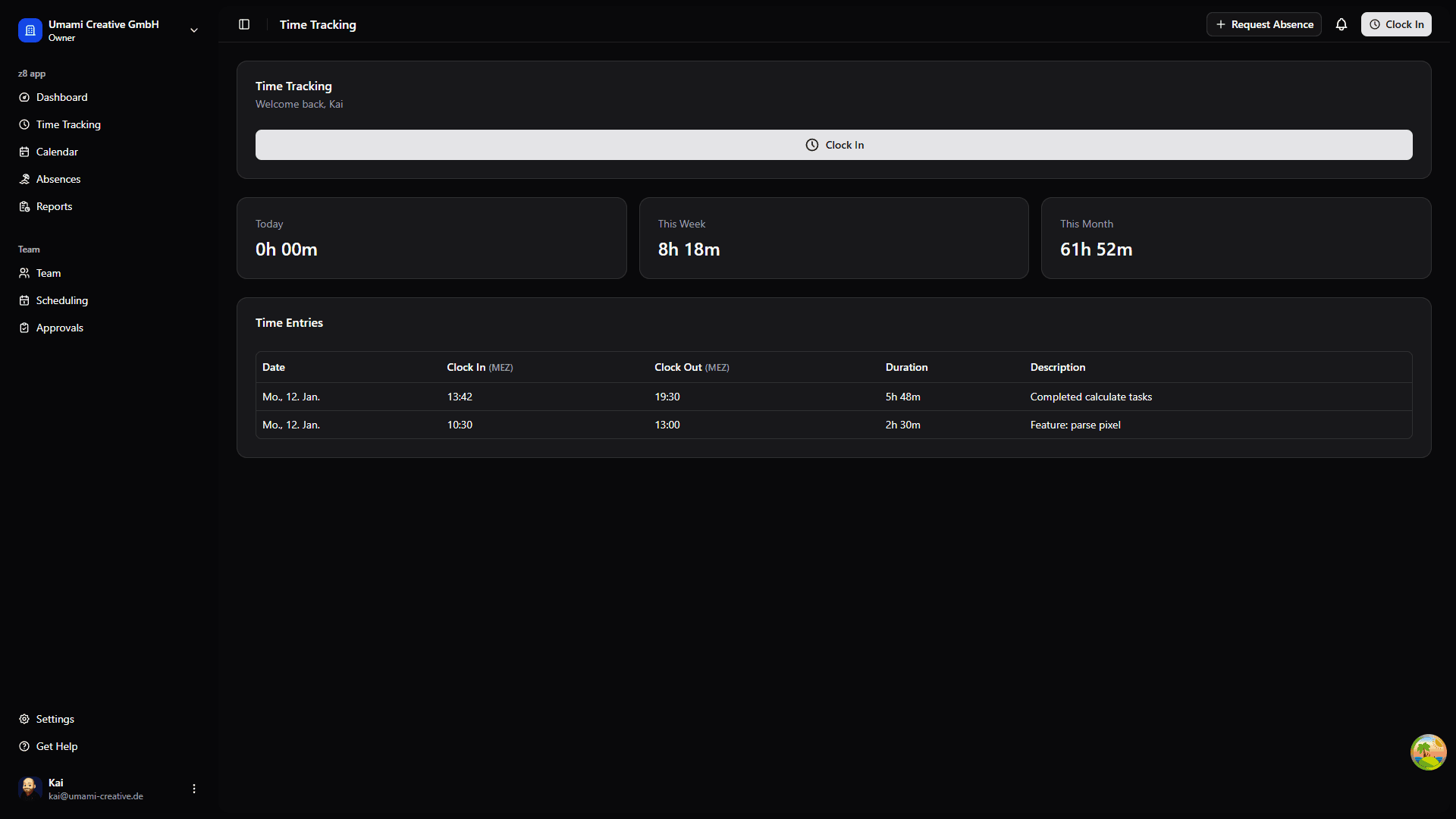
Quick Clock In/Out
The fastest way to track your time is using the Time Clock Popover in the header:
Click the clock icon in the top navigation bar
The popover shows your current status (clocked in/out)
Select a project from the dropdown (if projects are enabled)
Click "Clock In" to start your work period
Click "Clock Out" when you're done
Add optional notes for your time entry
The clock icon shows a visual indicator when you're clocked in.
Mobile Clock In/Out
On mobile, the home screen is optimized for starting and ending work quickly:
Open the Z8 mobile app and confirm the correct organization in Profile if you belong to more than one.
Choose your work location before clocking in: Office, Home, Field, or Other.
Tap Clock In to start your work period.
While working, the app shows your current status and today's worked time.
Tap Clock Out when you're done.
Mobile Scope
The mobile app currently requires an active connection for clock actions. If clock in or clock out fails, stay on the screen and try again after reconnecting.
Reminders and Timeline
The time tracking page may show reminder cards for breaks, hydration, or other organization-configured prompts. Treat these as operational guidance: they help you keep records accurate, but they do not replace your organization's time policy.
Your personal workday timeline shows the sequence of clock-in, break, resume, and clock-out events for the day. Use it to spot missing actions before the end of the workday.
On mobile, review the current status and next recommended action before opening detailed history. This keeps clock actions quick while still making corrections visible.
Time Tracking Page
For more detailed time management:
Go to Time Tracking from the main navigation
View your time entries for the current period
See totals: daily hours, weekly hours, overtime
Editing Time Entries
Whether a time change is applied immediately or sent for approval depends on your organization's change-policy rules.
In many organizations, entries inside the self-service window can be updated directly, while older entries are sent to a manager for review. The reason fields or other details you must provide can also vary based on your organization's setup.
To update an entry:
Find the entry you want to edit
Click the edit icon to open the correction dialog
Adjust the clock in/out times (displayed in your local timezone)
Add any required reason or supporting details shown in the form
Save the change or submit the request, depending on the policy that applies to that entry
The time correction dialog displays all times in your local timezone for clarity.
Project Assignment
If your organization uses project tracking, you can assign time entries to specific projects:
When clocking in, select a project from the Project dropdown
Only projects you're assigned to will appear in the list
Your time will be tracked against that project's budget
You can change the project assignment when editing a time entry. This is useful if you switch projects during the day.
Viewing Your Projects
To see which projects you're assigned to:
- Check the project dropdown when clocking in
- Or ask your manager about your project assignments
Surcharge Credits
If your organization has surcharge rules configured, you may earn additional time credits for:
- Night work - Working during designated night hours
- Weekend work - Working on Saturdays or Sundays
- Holiday work - Working on designated holidays
Surcharges are calculated automatically when you clock out. Your time entry will show both base hours and any surcharge credits earned.
Surcharge rules vary by organization. Check with your administrator to understand which rules apply to you.
Break Reminders
The system helps you comply with labor law break requirements:
- Automatic Reminders: Get notified when you should take a break
- Break Tracking: Breaks are automatically tracked when you clock out mid-shift
- Compliance Alerts: Warnings if required breaks are not taken
- Configurable Rules: Your organization sets break requirements based on local labor laws
Taking breaks is required by labor law. The system will alert you if you're working too long without a break.
Blockchain Verification
Blockchain verification adds an integrity record to your time entries to support audits and change tracking:
- Each entry receives a unique hash
- Changes can be reviewed through the recorded history
- Audit records help teams detect inconsistencies
Blockchain verification helps support record integrity and audit readiness, but your organization's policies and review process still determine how records are managed.