Surcharge System
Premium pay rules for overtime, night work, weekends, and holidays
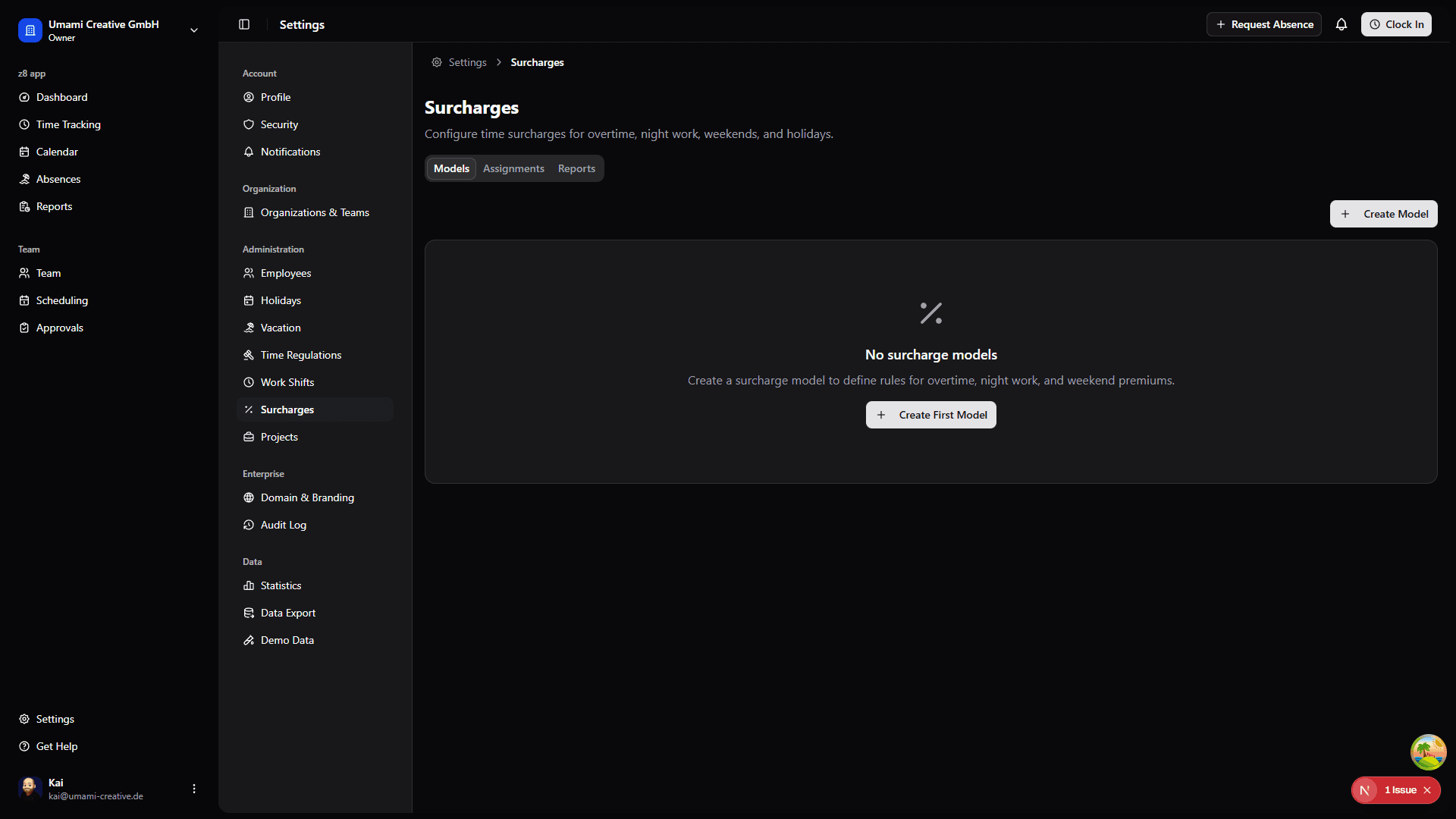
Overview
The surcharge system allows you to define premium pay rules that grant additional time credits for work performed during specific periods—such as nights, weekends, or holidays. Surcharges automatically calculate bonus time based on when employees work.
Surcharges add time credits, not direct monetary bonuses. A 50% surcharge on 2 hours of work adds 1 hour of credited time.
Key Concepts
Surcharge Models
A surcharge model is a collection of rules that define when premium time applies. Examples:
- "Weekend Premium" - Rules for Saturday and Sunday
- "Night Shift" - Rules for work between 22:00-06:00
- "Holiday Pay" - Rules for specific holiday dates
Surcharge Rules
Rules define the conditions and percentages for surcharges. Three rule types are available:
Day-of-Week Rules
Apply surcharges on specific days of the week.
Example: 50% surcharge on Sundays
- Rule type: Day-of-Week
- Day: Sunday
- Percentage: 50%
Assignment Hierarchy
Surcharge models are assigned at three levels, with the most specific taking precedence:
- Employee Level (highest priority) - Individual override
- Team Level - Applies to all team members
- Organization Level (lowest priority) - Default for everyone
If an employee has both a team and organization assignment, the team assignment takes precedence. Employee-level assignments override both.
Creating a Surcharge Model
Go to Settings → Surcharges
Click "Create Model"
Enter the model details:
- Name - Descriptive identifier (e.g., "Night Shift Premium")
- Description - Explanation of when it applies
- Active - Toggle to enable/disable
Add rules to the model (see next section)
Click "Save"
Adding Surcharge Rules
In the surcharge model dialog, click "Add Rule"
Configure the rule:
- Name - Rule identifier (e.g., "Sunday Premium")
- Type - Day-of-Week, Time Window, or Date-Based
- Percentage - Surcharge amount (e.g., 50 for 50%)
- Priority - Higher priority rules take precedence when overlapping
Configure type-specific fields:
Day-of-Week: Select the day (Monday-Sunday)
Time Window: Enter start and end times (HH:MM)
Date-Based: Enter a specific date OR a date range
Optionally set validity period (From/Until dates)
Add more rules as needed
Assigning Surcharge Models
Organization-Wide Assignment
Apply a surcharge model to all employees:
Go to Settings → Surcharges → Assignments tab
Click "Add Assignment"
Select Organization as the assignment type
Select the surcharge model
Optionally set effective dates
Click "Save"
Team Assignment
Apply a surcharge model to a specific team:
Go to Settings → Surcharges → Assignments tab
Click "Add Assignment"
Select Team as the assignment type
Select the team
Select the surcharge model
Click "Save"
Employee Override
Override surcharges for a specific employee:
Go to Settings → Surcharges → Assignments tab
Click "Add Assignment"
Select Employee as the assignment type
Select the employee
Select the surcharge model
Click "Save"
How Surcharges Are Calculated
The system evaluates each minute of a work period to determine applicable surcharges:
- Rule Evaluation: Each minute is checked against all active rules
- Max Wins Policy: When multiple rules apply, the highest percentage wins
- Aggregation: Minutes are summed per rule for the final calculation
Calculation Example
An employee works 8:00 PM to 2:00 AM (6 hours) with these rules:
- Night Premium (22:00-06:00): 25%
- Sunday Premium (all day): 50%
If the shift is on Sunday night:
- 8:00 PM - 10:00 PM: Sunday rule applies (50%)
- 10:00 PM - 2:00 AM: Both rules apply, Sunday wins (50%)
Result: 6 hours × 50% = 3 hours surcharge credit
The "max wins" policy means you never get double surcharges for overlapping rules—only the highest percentage applies.
Viewing Surcharge Calculations
Surcharge calculations are computed when employees clock out. The calculation includes:
| Metric | Description |
|---|---|
| Base Minutes | Total work period duration |
| Qualifying Minutes | Minutes where rules applied |
| Surcharge Minutes | Additional time credit earned |
| Total Credited | Base + Surcharge minutes |
Best Practices
Common Surcharge Patterns
Standard Night Shift
Model: Night Shift Premium
Rules:
  - Night Hours (22:00-06:00): 25%
Weekend Premium
Model: Weekend Premium
Rules:
  - Saturday: 25%
  - Sunday: 50%
Holiday Pay
Model: Holiday Premium
Rules:
  - Christmas Day (Dec 25): 100%
  - New Year's Day (Jan 1): 100%
  - Easter Sunday: 100%
Combined Night + Weekend
Model: Shift Premium
Rules:
  - Night Hours (22:00-06:00): 25% (priority: 1)
  - Saturday: 25% (priority: 2)
  - Sunday: 50% (priority: 2)