Holidays & Vacation Policies
Managing holiday calendars and vacation allowances
Employee Planning Context
Holiday calendars and vacation settings affect what employees see when planning absences. Clear holiday names and assigned calendars help employees understand whether a day counts against their balance before they submit a request.
Holiday Management
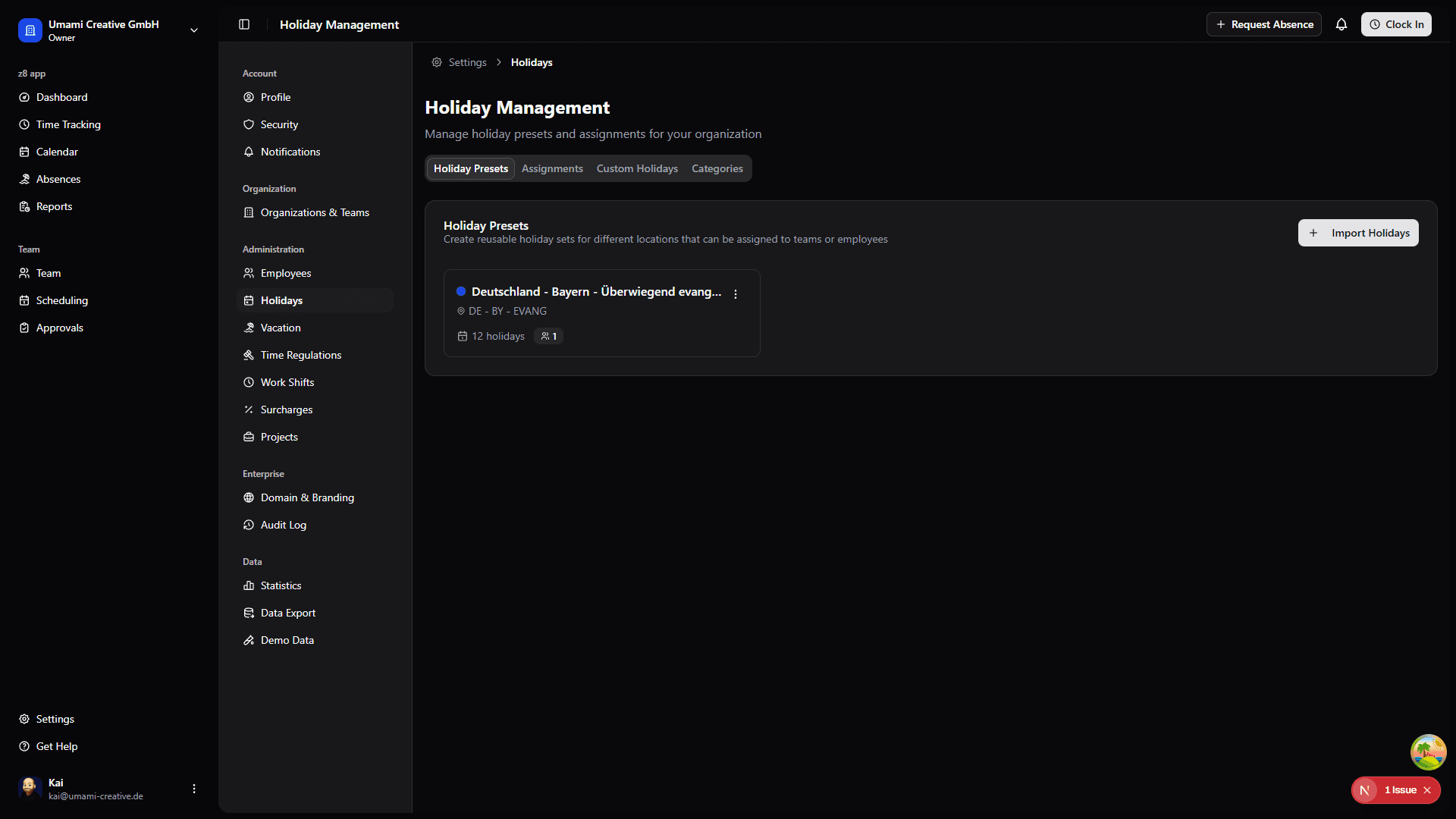
Holiday Presets
Holiday presets are predefined sets of public holidays that can be applied to locations or the entire organization.
Country-Based Templates
Import holidays based on country and year:
- Go to Settings → Holidays
- Click "Import Holidays"
- Select the country and optional region from the dropdowns
- Choose the year to import
- Review the list of holidays
- Click "Import Selected"
Imported presets are year-specific. For example, import Germany - Bavaria 2026 for the current year and Germany - Bavaria 2027 for next year. Assign each preset to the organization, team, or employee with the matching effective date range so employees can plan future vacations.
Creating Custom Holidays
To add organization-specific holidays:
- Go to Settings → Holidays
- Click "Add Holiday"
- Enter holiday details:
- Name: Holiday name (e.g., "Company Anniversary")
- Date: The holiday date
- Recurring: Whether it repeats annually
- Applies To: All employees or specific locations
- Click "Create"
Managing Holiday Presets
Create a Preset:
- Go to Settings → Holidays → "Presets"
- Click "Create Preset"
- Name the preset (e.g., "Germany - Bavaria")
- Add holidays to the preset
- Save
Assign Preset to Location:
- Go to the location settings
- Select the holiday preset
- Save changes
Schedule Next Year's Holidays:
- Import the next year's holiday preset for the same country or region
- Assign it to the same organization, team, or employee
- Set Effective from to January 1 of that year
- Set Effective until to December 31 of that year
Assignments for different years can coexist as long as their effective date ranges do not overlap.
Holiday Impact
Holidays affect:
- Vacation Calculations: Holiday days don't count against vacation balance
- Calendar Display: Holidays shown in the calendar view
- Time Tracking: Automatic recognition of public holidays
- Reports: Excluded from standard working day calculations
Vacation Policies
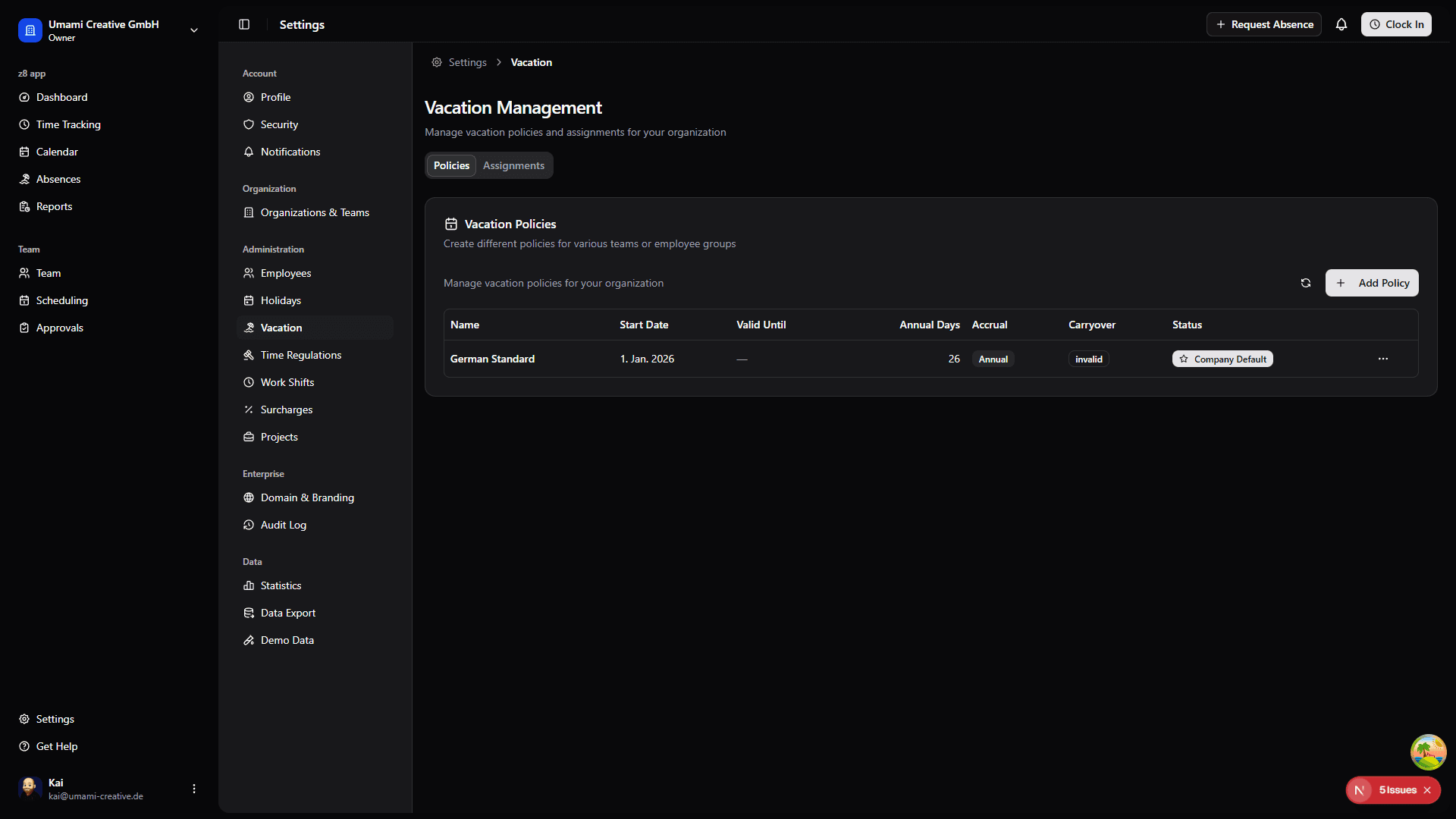
Vacation policies define vacation allowances, accrual methods, and carryover rules. Policies use an effective date model rather than being year-based, allowing you to schedule policy changes in advance.
Understanding the Policy Model
Each vacation policy has:
- Name: A descriptive name (e.g., "Standard 2025", "Executive Policy")
- Effective From: When the policy becomes active
- Valid Until: Optional end date (leave empty for ongoing policies)
- Company Default: Whether this is the default for all employees
- Annual Days: Base vacation days per year
- Accrual Type: How vacation is accrued (annual, monthly, biweekly)
- Carryover Settings: Whether unused days can carry over
Policy Inheritance
Policies are applied in priority order:
- Employee Override (highest priority) - Specific policy assigned to an individual
- Team Override - Policy assigned to a team
- Company Default (lowest priority) - The policy marked as company default
This means an employee with a personal override will use that policy, regardless of their team's policy or the company default.
Creating a Vacation Policy
- Go to Settings → Vacation → "Policies" tab
- Click "Create Policy"
- Configure the policy:
- Name: Descriptive name for the policy
- Effective From: Start date (defaults to January 1 of next year)
- Valid Until: Optional end date (leave empty for ongoing)
- Set as Company Default: Check to make this the default for all employees
- Annual Days: Base vacation allowance
- Accrual Type: Annual (all at once), Monthly, or Biweekly
- Accrual Start Month: When accrual begins (for monthly/biweekly)
- Allow Carryover: Enable to allow unused days to roll over
- Max Carryover Days: Limit on carried-over days (leave empty for unlimited)
- Carryover Expiry: Months after which carried-over days expire
- Click "Create"
Setting the Company Default
The company default policy applies to all employees who don't have a team or individual override.
To set a policy as company default:
- Create or edit a policy
- Check "Set as Company Default"
- Save the policy
Important: Setting a new policy as company default will automatically remove the default flag from any existing default policy.
Scheduling Policy Changes
You can schedule future policy changes by setting effective dates:
Example - Increasing vacation for next year:
- Create a new policy "Standard 2026" with Effective From set to January 1, 2026
- Mark it as Company Default
- The system will show both the current and next scheduled default
The Assignments tab shows:
- Current: The active company default with its start date
- Next: The upcoming default (if scheduled) with when it takes effect
Policy Statuses
Policies display one of three statuses:
| Status | Description |
|---|---|
| Company Default | The active default policy for all employees |
| Active | A valid policy that can be assigned to teams/employees |
| Superseded | Policy whose Valid Until date has passed |
Superseded policies appear dimmed in the list but remain visible for historical reference.
Team and Employee Overrides
Use the Assignments tab to override the company default for specific teams or employees.
Assigning a Policy to a Team:
- Go to Settings → Vacation → "Assignments" tab
- Under Team Overrides, click "Assign to Team"
- Select the policy and team
- Click "Assign"
Assigning a Policy to an Employee:
- Under Employee Overrides, click "Assign to Employee"
- Select the policy and employee
- Click "Assign"
Removing an Override:
- Click the trash icon next to any team or employee override
- The entity will revert to using the company default (or team policy, for employees)
Employee-Specific Allowances
To customize vacation allowance for an individual employee:
- Go to Settings → Vacation → "Employees" tab
- Find the employee
- Click "Edit" next to their name
- Configure custom allowance:
- Custom Annual Days: Override policy default (leave blank to use policy)
- Carryover Days: Days brought forward from previous year
- Adjustment Days: Add or subtract days (can be positive or negative)
- Adjustment Reason: Required explanation for adjustments
- Review total allowance displayed at top
- Click "Save Changes"
Allowance Calculations
Total allowance is calculated as:
Total = Annual Days + Carryover + AdjustmentsExample:
- Annual Days: 20 (from policy)
- Carryover: 5 (from last year)
- Adjustments: +2 (bonus days)
- Total Available: 27 days
Common Vacation Scenarios
New Employee Mid-Year:
- Create employee profile
- The policy's accrual settings handle prorating automatically
- Or: Add a negative adjustment with reason "Pro-rated first year"
Long-Service Bonus:
- Go to employee's vacation settings
- Add adjustment days (e.g., +5)
- Enter reason: "10-year service bonus"
- Save changes
Different Policy for a Department:
- Create a new policy (e.g., "Sales Team - 25 Days")
- Do NOT mark as company default
- Assign the policy to the Sales team in the Assignments tab
Scheduled Policy Increase:
- Create new policy with increased days
- Set Effective From to the desired start date
- Mark as Company Default
- Current employees continue with existing policy until the effective date
Deleting Policies
- Active policies with team/employee assignments cannot be deleted until assignments are removed
- Company default policies cannot be deleted - first set another policy as default
- Superseded policies can be deleted if no longer needed for records