User Guide
Calendar View
Day, week, and month views for managing your work schedule and absences
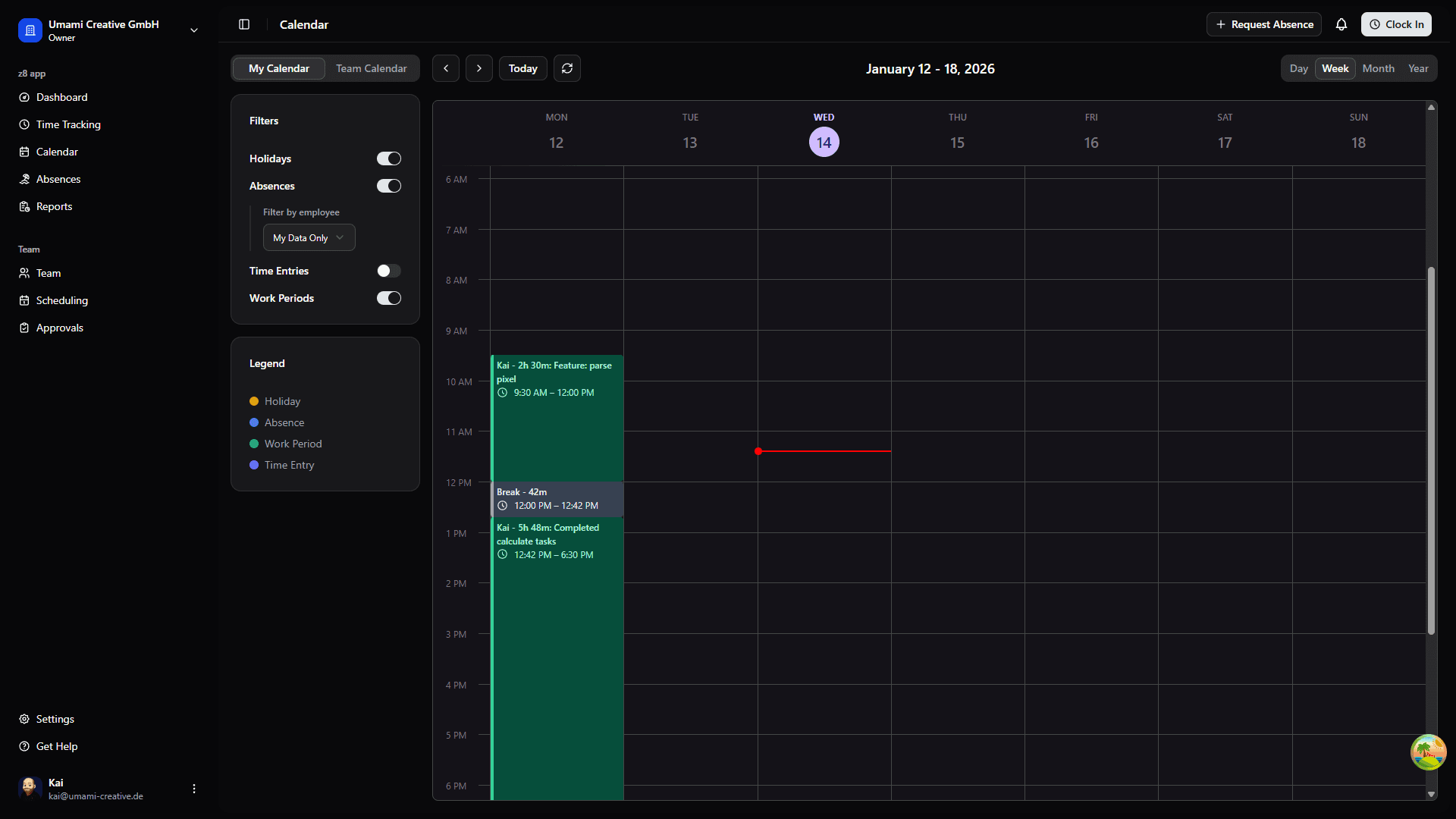
Accessing the Calendar
The calendar provides a visual overview of your work schedule, absences, and team events:
- Go to Calendar from the main navigation
- Choose your view: Day, Week, or Month
- Navigate using the arrow buttons or date picker
Calendar Features
- Your Work Periods: See when you clocked in/out
- Approved Absences: Vacation days, sick leave shown in different colors
- Team Events: See when teammates are off (if permitted)
- Holidays: Public holidays highlighted
Managing Work Periods
You can manage your work periods directly from the calendar:
Edit a Work Period
- Click on a work period in the calendar
- Select "Edit" from the context menu
- Adjust start time, end time, or notes
- Click "Save Changes"
Split a Work Period
If you need to add a break retroactively:
- Click on the work period
- Select "Split"
- Enter the break start and end times
- The period will be split into two segments
Delete a Work Period
- Click on the work period
- Select "Delete"
- Confirm deletion (note: may require approval for past entries)
Filtering the Calendar
Use the filter options to customize your view:
- Show/hide different event types
- Filter by team members
- Toggle between personal and team calendar
Year View
The year calendar provides a high-level overview of your entire year at a glance.
Accessing Year View
- Go to Calendar from the main navigation
- Click the view selector in the toolbar
- Select "Year" from the dropdown
Reading the Year Calendar
The year view uses color coding to help you quickly understand each day:
| Color | Meaning |
|---|---|
| Green | Work day with time logged |
| Blue | Approved vacation/leave |
| Red | Sick leave |
| Gray | Weekend or holiday |
| White | No data for that day |
The intensity of the color indicates the amount of time:
- Lighter shades = fewer hours
- Darker shades = more hours
Year Calendar Navigation
- Use arrow buttons to move between years
- Click on any month to jump to that month's detailed view
- Click on a specific day to see the day view with all entries
- The current day is highlighted with a border