Project Management
Creating projects with budgets, deadlines, and team assignments
Overview
Projects allow you to organize work, track time against specific initiatives, and monitor budgets and deadlines. Employees can assign their time entries to projects, giving you visibility into resource allocation and project health.
Creating a Project
Go to Settings → Projects
Click "Create Project"
Fill in the project details:
- Name (required) - Unique identifier for the project
- Description - Purpose and scope of the project
- Status - Current lifecycle state
- Color - Visual identifier for the project
- Budget Hours - Optional time budget
- Deadline - Optional target completion date
Click "Create" to save
Project Status Lifecycle
Projects progress through five status states:
| Status | Description | Time Tracking |
|---|---|---|
| Planned | Not yet started | Disabled |
| Active | Currently in progress | Enabled |
| Paused | Temporarily halted | Disabled |
| Completed | Work finished | Disabled |
| Archived | Historical record | Disabled |
Only Active projects appear in the time tracking project selector. Change status to "Active" when ready for employees to log time.
Budget Tracking
Setting a Budget
When creating or editing a project, enter the total hours allocated in the Budget Hours field. This enables budget tracking features.
Budget Progress Indicators
The system displays budget consumption with color-coded progress bars:
- Green (0-70%): On track
- Yellow (70-90%): Approaching limit
- Red (90-100%): Near or at budget
- Dark Red (>100%): Over budget
Budget Alerts
When a project reaches critical budget thresholds, the system can send notifications to project managers.
Deadline Management
Setting Deadlines
Add a deadline date to track project timelines. The system calculates and displays:
- Days remaining until deadline
- "Due tomorrow" or "Due today" warnings
- Days overdue for past deadlines
Deadline Status Badges
| Badge | Meaning |
|---|---|
| Red | Overdue or due today |
| Amber | Due within 7 days |
| Plain text | More than 7 days remaining |
Projects with passed deadlines are highlighted in red throughout the system.
Team Assignments
Assigning Teams
Assign entire teams to a project so all team members can log time:
Open the project for editing
Go to the Assignments section
Click "Add Team" and select a team
Save the project
Assigning Individual Employees
For more granular control, assign specific employees:
Open the project for editing
Go to the Assignments section
Click "Add Employee" and select an employee
Save the project
Employees can only log time to projects they're assigned to (directly or via team membership).
Project Managers
Designate employees as project managers for oversight responsibilities:
Open the project for editing
Go to the Managers section
Click "Add Manager" and select an employee
Save the project
Project managers receive:
- Budget threshold notifications
- Deadline reminder notifications
- Project status update alerts
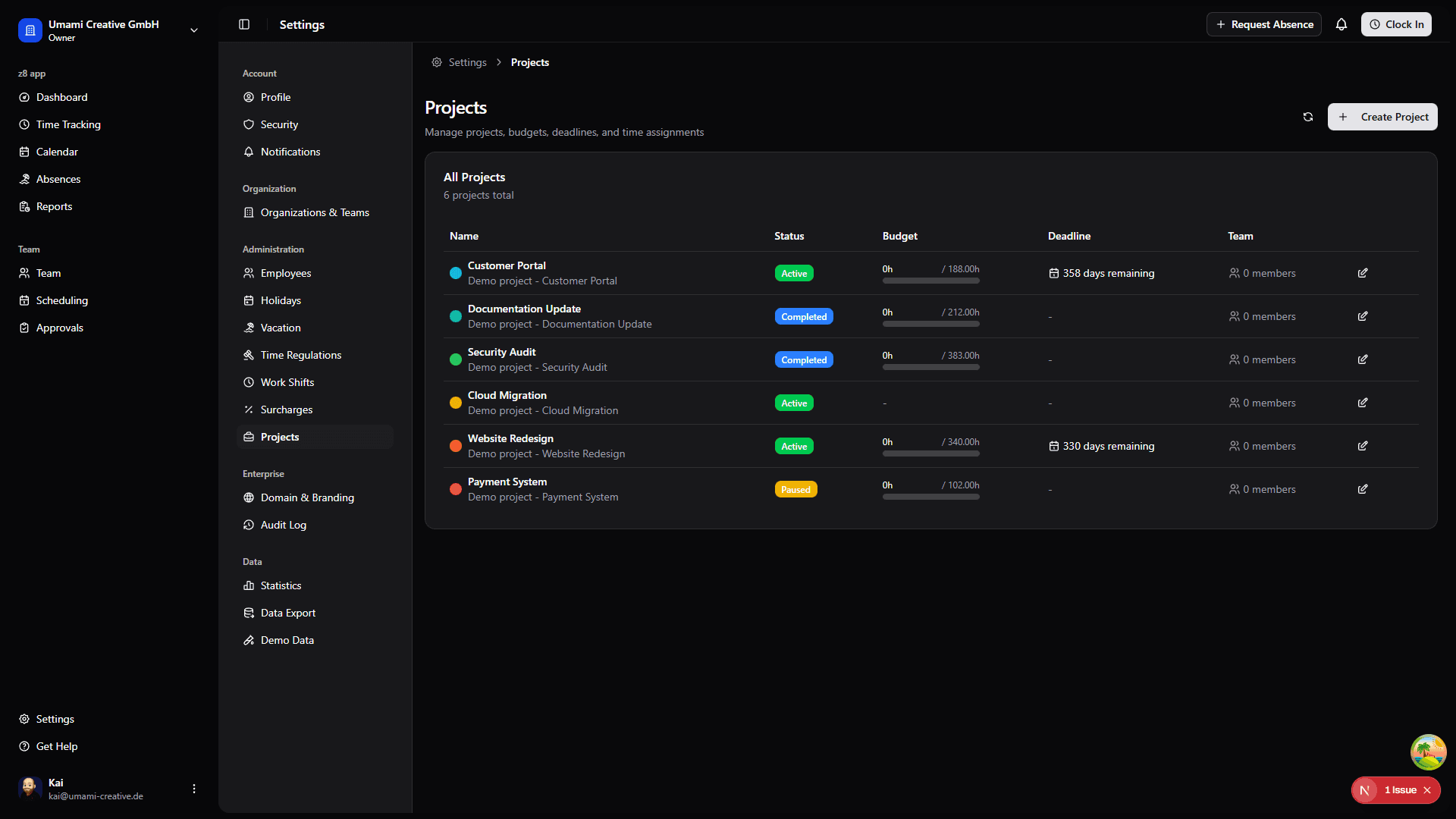
Project Table
The Projects settings page displays all projects in a table with:
| Column | Description |
|---|---|
| Name | Project name with color indicator |
| Status | Current lifecycle status |
| Budget | Progress bar showing hours used vs allocated |
| Deadline | Target date with status badge |
| Team | Number of assigned team members |
| Actions | Edit button |
Best Practices
Planning Projects
- Set realistic budgets - Base on historical data from similar projects
- Assign teams early - Ensure employees can log time from day one
- Use descriptive names - Make projects easy to identify
- Add descriptions - Document scope and objectives