Admin Guide
Permission Management
Managing team permissions and access control
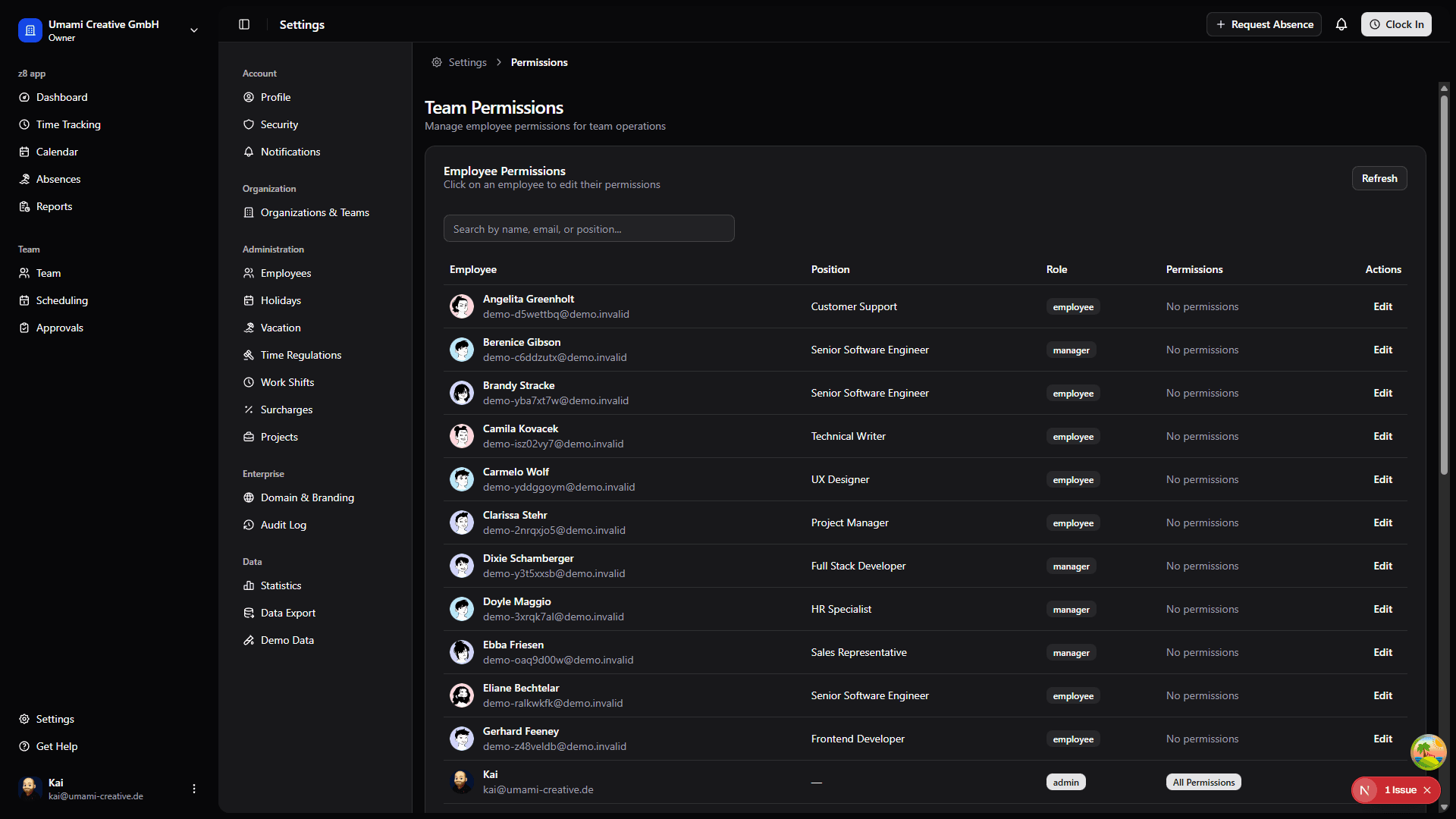
Permission Types
The system has four granular team permissions:
-
Can Create Teams
- Allows creating new teams in the organization
- Typically granted to department heads or senior managers
-
Can Manage Team Members
- Add and remove members from teams
- Useful for team leads who manage their own teams
-
Can Manage Team Settings
- Edit team name, description, and configuration
- For team administrators who maintain team information
-
Can Approve Team Requests
- Approve time-off and time corrections for team members
- Commonly granted to managers and team leads
Permission Scopes
Permissions can be granted at two levels:
-
Organization-Wide: Permission applies to all teams
- Use for: Senior managers, HR administrators
- Example: Department head can manage all teams in their division
-
Team-Specific: Permission applies to one specific team only
- Use for: Team leads, project managers
- Example: Team lead can only manage their own team
Important: Organization-wide permissions override team-specific ones.
Granting Permissions
To grant permissions to an employee:
- Go to Settings → Permissions
- Find the employee in the list
- Click "Edit" next to their name
- Select permission scope:
- Choose "All Teams (Organization-wide)" OR
- Select a specific team from the dropdown
- Check permissions to grant:
- Can Create Teams
- Can Manage Team Members
- Can Manage Team Settings
- Can Approve Team Requests
- Click "Save Permissions"
Note: At least one permission must be selected to save.
Revoking Permissions
To remove all permissions from an employee:
- Go to Settings → Permissions
- Find the employee
- Click "Edit"
- Click "Revoke All" button
- Confirm revocation
Permission Best Practices
- Grant minimum necessary permissions - Principle of least privilege
- Use team-specific permissions when possible - Better security and clarity
- Review permissions quarterly - Ensure they match current roles
- Document permission policies - Clear guidelines for granting access
- Audit permission usage - Check logs for unusual activity
Admin vs Regular Permissions
Admins automatically have all permissions and cannot be restricted:
- Full access to all features
- Can grant/revoke permissions
- Can override any setting
- System-level privileges
Non-admin employees must be explicitly granted permissions:
- Start with no team permissions
- Permissions must be granted by admins
- Can be restricted to specific teams
- Permissions can be revoked at any time